
Setup guide
How to put a TXT file on a Garmin watch
Garmin watches do not include a general-purpose TXT reader. TXT Reader adds a browser-to-watch path: upload the file here, pair the watch, and download only the chapters you choose.
Updated September 13, 2026
Before you start
You need a compatible Garmin watch, internet access on that watch or through Garmin Connect’s network bridge, and a Google account. A separate TXT Reader phone app is not required.
- A Garmin model listed in the Connect IQ app and on the compatible-watch page.
- Garmin Connect installed if the watch will use the phone as a network bridge.
- A TXT file you have the right to upload. 10 MB is the per-file limit after UTF-8 conversion.
- A UTF-8 file when possible. The site can detect several encodings, but garbled source text should be fixed first.
If you already use a phone companion and want Bluetooth import plus Markdown, see WristTale instead.
The transfer path
- Install TXT Reader from the Connect IQ Store on the watch.
- Open this website and sign in with Google.
- On the watch, open TXT Reader and choose Pair Device.
- Enter the four-digit code on the website within 10 minutes.
- Upload a TXT file and confirm the detected encoding.
- Review suggested chapters. Nothing is selected by default.
- Choose the chapters and the target watch, then add them to the queue.
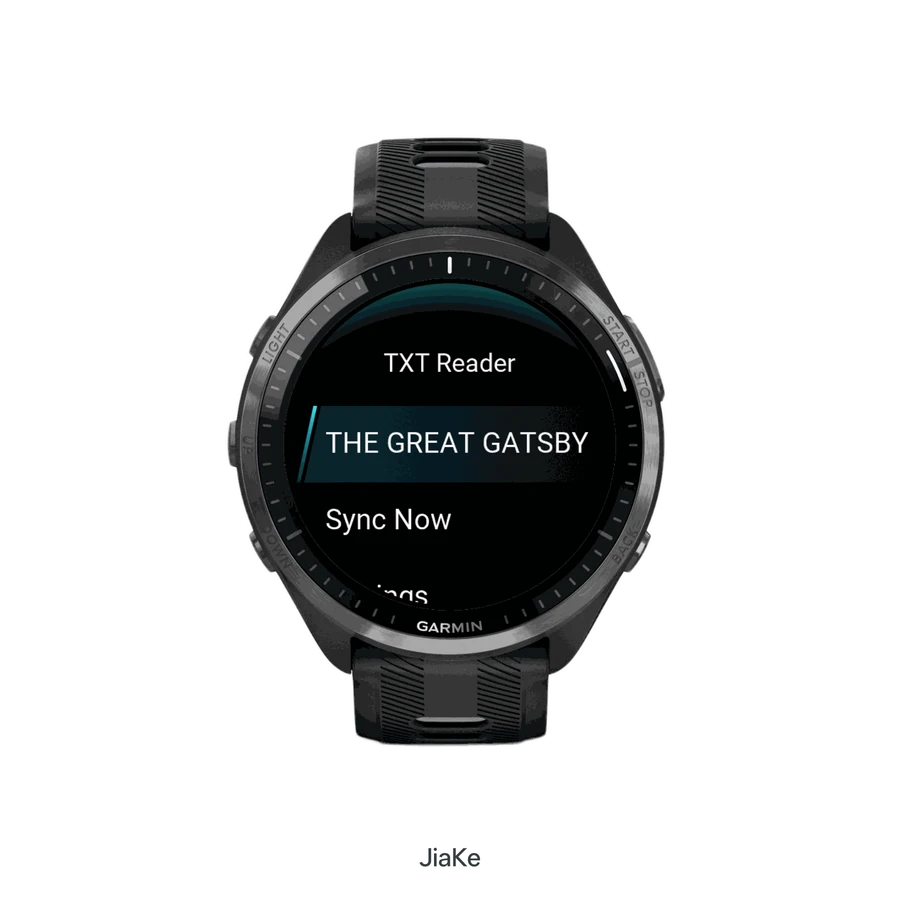
- On the watch, choose Sync Now and keep the app open until the transfer finishes.
The watch app is listed as TXT Reader for Watches. Open the Connect IQ listing.
Codes expire after 10 minutes. If a code is rejected, generate a new one on the watch and enter only that newest code.
Sync and offline reading
The website stores the book and a device-specific queue. The watch pulls compact pages over HTTPS and acknowledges a page only after it is saved locally. That is why an interrupted download can resume instead of starting over.
After the terminal acknowledgement, the book appears in the watch library. You can change font size, switch light or dark backgrounds, jump chapters, and keep reading without this website staying open.
- Pairing and downloads need a network path.
- Reading completed chapters does not.
- Queue items belong to one paired watch. Another watch cannot claim them.
- Downloaded books stay readable if a subscription later ends.
If something fails
Pairing fails
Confirm the watch has network access, the date and time are correct, and you entered the newest code. Keep Garmin Connect available when the watch is using the phone bridge. TXT Reader does not send books over a custom Bluetooth protocol.
The transfer stays queued
Open TXT Reader on the same watch you selected in the library and start Sync Now. Keep the watch app in the foreground during a long transfer.
Chapters look wrong
Confirm encoding first. Then review the suggested headings, switch to a built-in language rule, or edit chapter boundaries before you queue the transfer.
Billing, reset, and contact details are on the support page.
Next
Check whether your model is listed on compatible Garmin watches.
Compare this browser workflow with the phone app on TXT Reader vs WristTale.
When you are ready, view pricing or sign in and upload a file.
Try your first transfer with a small TXT
This original two-chapter sample is free to download and reuse. Uploading, processing and syncing still follow your site's access and usage rules. Use a built-in chapter rule if you do not need AI suggestions.
Download the sample TXT- Upload and review
Download the sample, sign in and upload it. Check the encoding and chapter boundaries. Nothing is selected by default.
- Pair the intended device
Generate a fresh four-digit code in TXT Reader and enter it on the same website shown by the device. Codes expire after 10 minutes; international and domestic accounts remain separate.
- Choose one chapter and sync
Select Chapter 1, pick your device and add the transfer to the queue. Open TXT Reader on that device, choose Sync Now and keep the app open.
- Verify before going offline
A queued or partial transfer is not a completed download. Wait for Completed, then open the downloaded chapter on the device and check its text before disconnecting.
Illustration: send Chapter 1 only
Select the first chapter and leave the second unchecked. Confirm the target device before adding it to the queue. This is an illustration, not an active upload form.
Match the symptom to the next step
- The code is rejected
- Check the website shown on the device, request a fresh code and keep its network connection available. Do not reuse an expired code.
- The transfer stays queued
- Open TXT Reader on the selected device and start Sync Now. A browser queue alone does not download text onto the device.
- Characters or chapters look wrong
- Check the source encoding and preview before syncing. Device fonts vary; a missing glyph is not necessarily a missing character in your TXT.
- The transfer is partial or interrupted
- Reconnect and resume from TXT Reader. Do not treat partial progress as a finished book; verify the downloaded chapter on the device.