
Compatibility
Compatible Garmin watches
TXT Reader runs as a Connect IQ device app. The families below match the published watch package. The live Connect IQ listing is the final source of truth for a specific model.
Updated September 13, 2026
How support works
The website can pair any watch that successfully installs the TXT Reader Connect IQ app and reports a known Garmin part number. If Connect IQ will not install the app, this website cannot add that model.
Storage, screen shape, and transfer speed still vary. A fēnix 8 and a vívoactive 4 can both run the app, but they do not hold the same amount of text or feel the same to read.
Supported families
The current published package includes these families. Model names below are grouped for reading; the Connect IQ product list is more granular.
If your exact size or music variant is missing here but appears in the Connect IQ store, trust the store.
Matching model groups: 43
These are grouped model names, not a count of individually tested devices. The published Connect IQ listing decides whether your exact variant can install the app.
Forerunner
- 165 / 165 Music
- 255 / 255 Music / 255s / 255s Music
- 265 / 265s
- 570
- 645 Music
- 745
- 945 / 945 LTE
- 955
- 965
- 970
fēnix
- 6 / 6 Pro / 6S / 6S Pro / 6X Pro
- 7 / 7 Pro / 7 Pro – no Wi-Fi
- 7S / 7S Pro
- 7X / 7X Pro / 7X Pro – no Wi-Fi
- 8
- 8 Pro
- 8 Solar
- 9
- 9 Pro
- 9 Pro Solar
- E
epix
- epix 2
- epix Pro
Venu
- 2 / 2 Plus / 2S
- 3 / 3S
- 4
- X1
- Sq 2 / Sq 2 Music / Sq Music
vívoactive
- vívoactive 4 / 4S
- vívoactive 5
- vívoactive 6
Instinct
- Instinct 3 AMOLED
- Instinct 3 Solar
Descent and Enduro
- Descent Mk2 / Mk2S
- Descent Mk3
- Enduro 3
MARQ
- MARQ 2 / MARQ 2 Aviator
- Adventurer, Athlete, Aviator, Captain, Commander, Driver, Expedition, Golfer
Approach, D2, and Legacy
- Approach S50
- Approach S70
- D2 Air
- Captain Marvel
- Darth Vader
Network requirements
The watch downloads chapters over HTTPS. Watches with Wi-Fi can sync on their own. Watches without Wi-Fi may still sync when Garmin Connect’s system network bridge is available.
- TXT Reader does not copy books through USB mass storage.
- It does not use a custom phone Bluetooth protocol.
- Keep Bluetooth and Garmin Connect available when the watch needs the phone as a bridge.
A compatible device with Wi-Fi
Pairing and downloading can use its available Wi-Fi connection. Keep TXT Reader open until the transfer finishes.
A device using the phone's connection
Keep Garmin Connect and Bluetooth available for Garmin's system network bridge. No separate TXT Reader phone app is required; that does not mean every sync works without a phone.
After a completed download
Read stored chapters offline. Screen size, font coverage, storage and reading controls vary by device. Check the book on the device before relying on it away from a connection.
How to check your watch
- Open the Connect IQ Store on the watch or in Garmin Connect.
- Search for TXT Reader.
- If the app is offered for that device, install it and pair from this website.
- If the app is not offered, that model is outside the current package.
The public listing is TXT Reader for Watches on Connect IQ.
Ready to set up a supported watch? Follow the TXT transfer guide.
TXT Reader 1.0.4 preview
Landscape reading on Garmin Edge
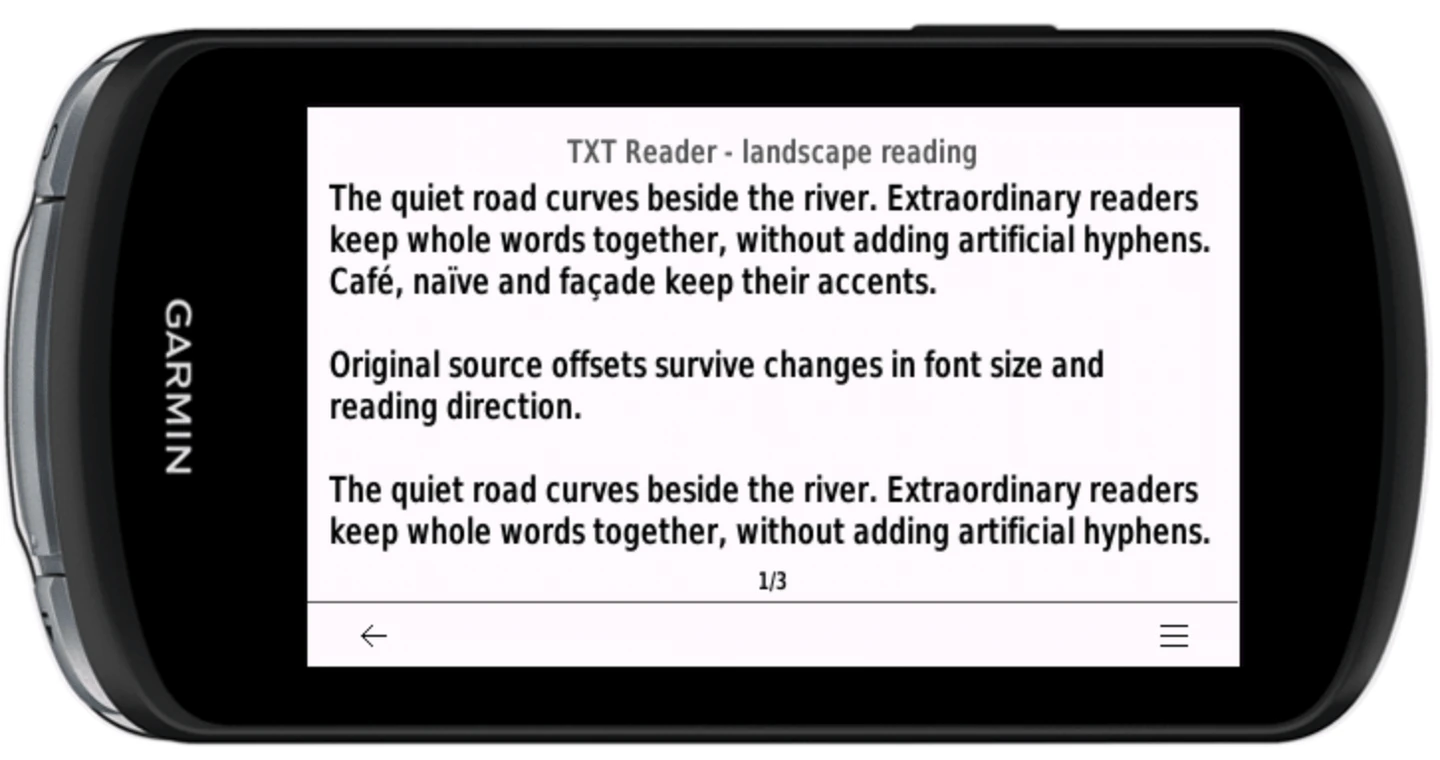
Use the wider side of a supported Edge screen for longer lines of TXT. Choose portrait, landscape left or landscape right from the reading menu; the reading toolbar turns with the text.
Edge support is implemented in the local 1.0.4 build. It is not in the published 1.0.3 package yet. This preview is not an installation or hardware-acceptance guarantee; check the live Connect IQ listing before installing or paying.
Choose the direction in the reader
- Open a book in TXT Reader.
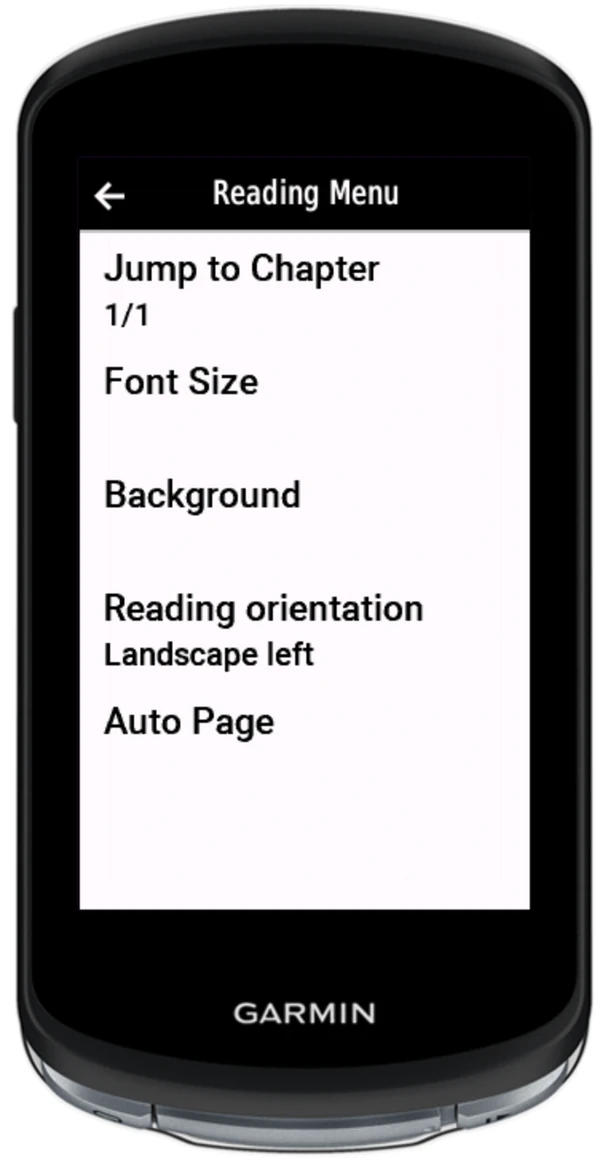
- Open Reading Menu, then Reading orientation.
- Choose Portrait, Landscape left or Landscape right and return to the text.
The preview keeps your source-text position when changing direction or font size. It prefers whole-word wrapping, keeps existing accented characters and splits oversized words without inventing hyphens. Actual glyph support depends on the device's native fonts.
Landscape-capable Edge models in 1.0.4
- Edge 1040
- Edge 1050
- Edge 540
- Edge 550
- Edge 840
- Edge 850
- Edge Explore 2
- Edge MTB
Portrait-only Edge models in 1.0.4
- Edge 1030
- Edge 1030 Bontrager
- Edge 1030 Plus
- Edge 530
- Edge 830
These older Edge models keep portrait reading and do not show the direction menu. Existing watch models also stay portrait-only.
On a landscape-capable model, unavailable graphics APIs or insufficient bitmap memory cause a fallback to portrait. Touch gestures and physical buttons still need hardware acceptance; simulator checks are not a substitute.
Read while stopped. Do not operate the reader while riding or driving.